
Effortlessly schedule and share shifts with RotaPlanner.app
Start with a 14-day trial.
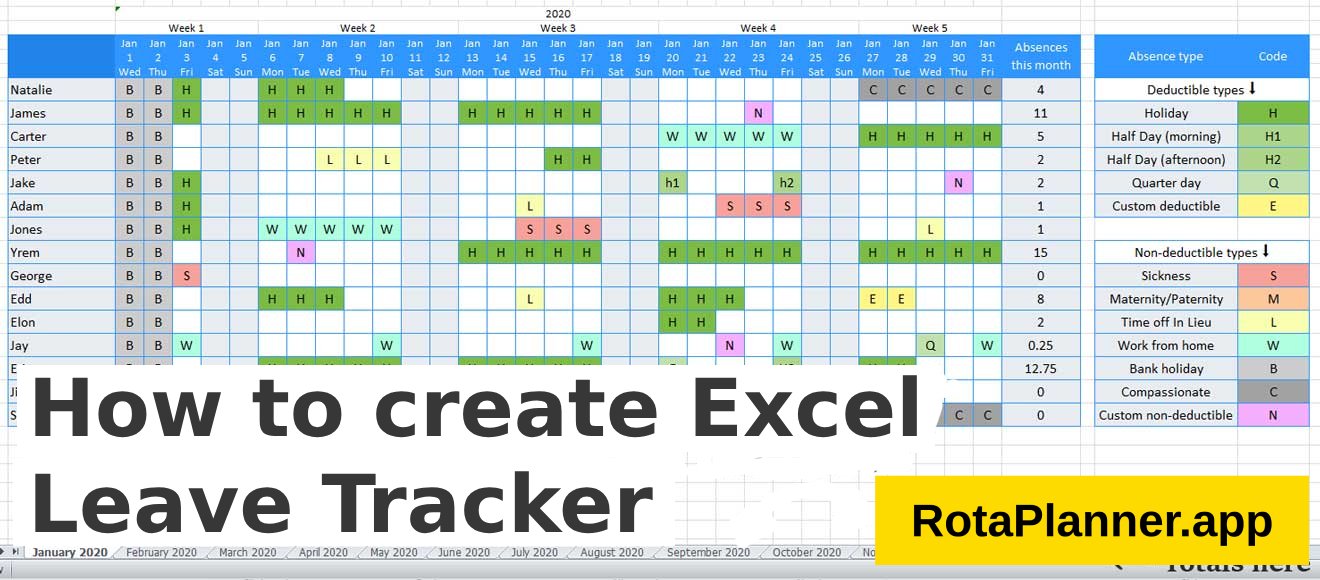
How to Create Leave Tracker in Excel (Super easy)
Managing employee leave can often be a daunting and time-consuming task, especially for growing businesses.
Keeping track of who is on vacation, who is out sick, and other types of absences requires a reliable system that is both easy to use and efficient. Luckily, you don't need to start from scratch or invest in expensive software. With this Excel leave planner template from Absentia, you can quickly set up a comprehensive leave tracker that streamlines the entire process.
This guide will walk you through creating your own leave tracker in Excel, showing you just how easy it is to manage employee absences with a few simple steps. Whether you’re a small business owner or part of a larger HR team, this template will save you time and help you stay organized.
Step 1: Go to the template page
Our sister company Absentia has created a free Excel leave tracker template that you can download and use right away.
View Excel template downloadStep 2: Configure Your Leave Tracker
- Choose Tracking Method: Decide whether you want to track absences in days or hours:
- Days: Use codes for different types of absences (e.g.,
Sfor sick leave). - Hours: Enter the number of hours absent directly into the cells.
- Days: Use codes for different types of absences (e.g.,
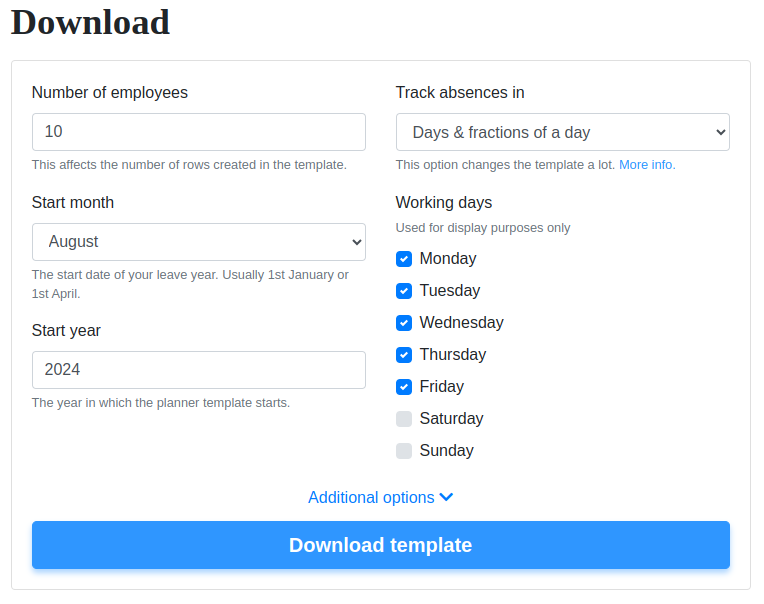
- Select Custom Start Date: Choose the start date for your leave tracker. For instance, if your leave year is from April to March, set April as your starting month.
- Specify Number of Employees: The template is flexible and can be adjusted for any number of employees. You only need to set their names once in the first month's tab.
- Define the Year: You can select the year your leave planner starts, making it adaptable for any year, including future years like 2025 or 2026.
- Determine Number of Months: By default, the template covers 12 months, but you can extend it to 24 months (2 years) or more if needed.
Step 3: Customize Leave Types
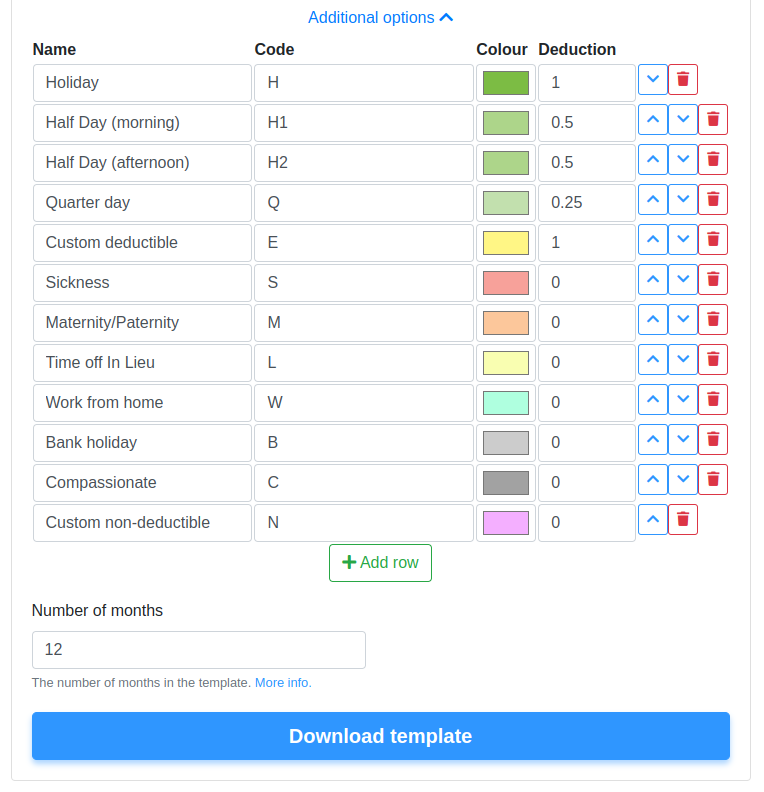
- Default Leave Types: The template comes with default leave types like Vacation, Sick Leave, Half Day, Maternity/Paternity, etc. These are tracked using specific codes:
- Vacation (
V) - Half Day Morning (
H1) - Half Day Afternoon (
H2) - Sickness (
S) - And more
- Vacation (
- Add Custom Leave Types: There are options for custom leave types. You can rename these according to your needs.
Step 4: Download the Excel leave tracker
- Hit download Once you're happy with the configuration you've chosen, download and open the file in Excel.
Step 5: Set Up Employee Details
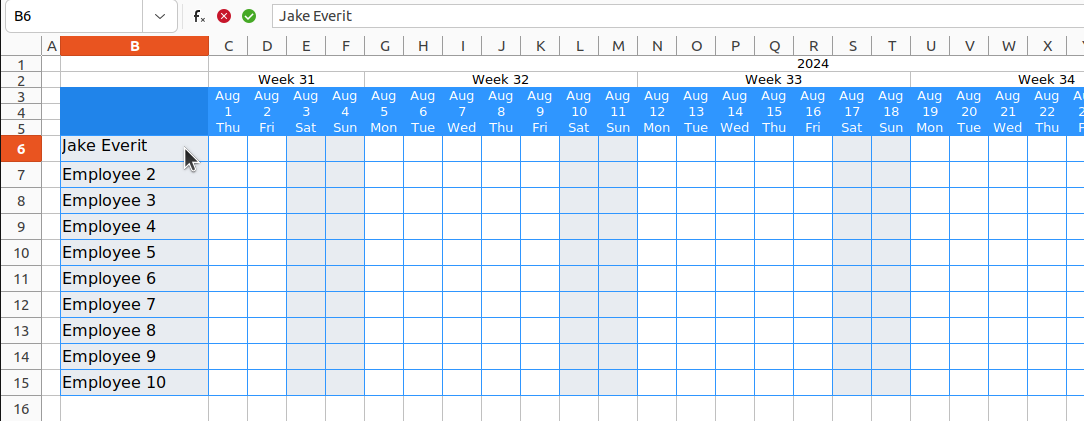
- Enter Employee Names: On the first sheet, you will see cells designated for employee names. Enter the names of all employees here. These names will automatically populate the other sheets, so you only need to enter them once.
Step 6: Record Absences
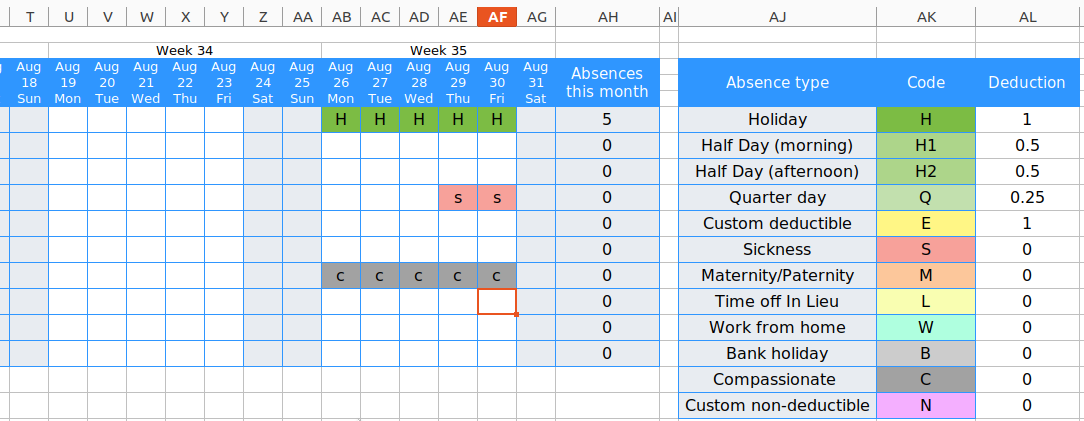
- Enter Absences: For each day an employee is absent, enter the appropriate code or number of hours in the respective cell for that day.
- If tracking in days, use codes (like
Sfor sick leave). - If tracking in hours, enter the number of hours directly.
- If tracking in days, use codes (like
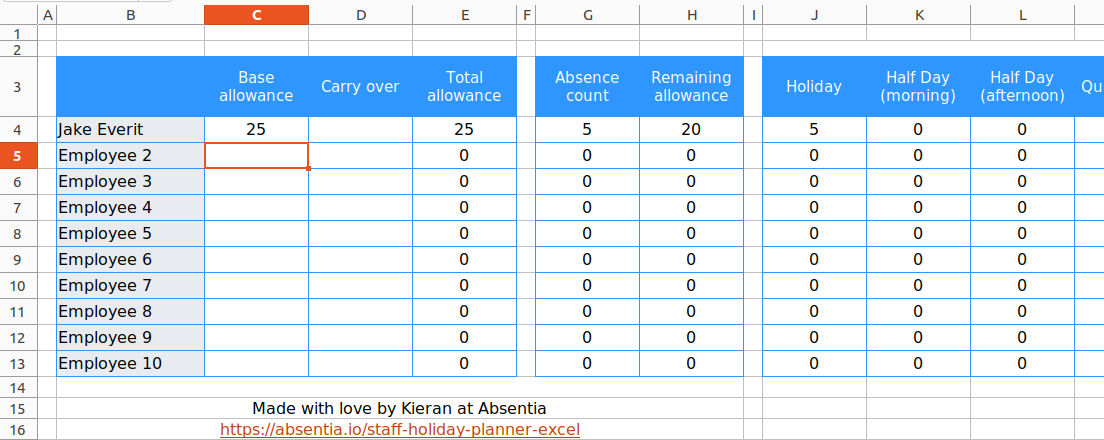
- Monitor Monthly and Yearly Totals: The template automatically calculates monthly totals for each employee at the end of each row. Yearly totals and breakdowns by leave type can be found on the separate "Totals" tab.
Step 7: Check out the Totals Page
- Analyze Data: The "Totals" tab provides a comprehensive breakdown of all absences per employee, showing both monthly and overall totals. If tracking in days, this tab also includes a breakdown by leave type.
Benefits of using the Excel Leave Tracker
Instead of starting from scratch, the template gives you a ready-made spreadsheet that you can use right away. You just type in the names of your employees and fill in when they take time off using simple codes. For example, if someone is sick, you put an "S" in the box for that day.
The template is very flexible. You can set it up to track absences in days or hours, depending on what works best for your business. You can also customize it to match your specific needs, like starting the year in any month you want and adding any special types of leave that your company offers. It automatically calculates how much time off each person has taken and shows monthly and yearly totals, so you can easily keep track of everything.
Consider a Modern Cloud-Based Alternative
While Excel leave trackers are a great starting point, as your team grows you might find yourself wrestling with version control issues, manual calculations, and email chains for leave approvals. If you're ready to move beyond spreadsheets, modern cloud-based solutions can save significant time and reduce errors.
Annual Leave Tracker offers an intuitive alternative that eliminates the manual work of spreadsheets. With automated calculations, real-time updates, smart conflict detection, and built-in UK compliance, it transforms leave management from a time-consuming task into an automated system. Most teams report saving 5+ hours per week on leave administration after switching from Excel.
At just £2 per employee per month with a 30-day free trial (no credit card required), it's worth exploring whether a dedicated tool like Annual Leave Tracker could simplify your leave management as your business scales.